Showing posts with label Display Monitors. Show all posts

Dell U2717D UltraSharp 27 InfinityEdge Monitor Review


Dell UltraSharp Series has been one of the most popular choices of display monitors over the years and Dell is known to refresh the lineup every one or two years. The U2717D UltraSharp 27 InfinityEdge is this year's latest 27" model which features a 2560 x 1440 resolution IPS panel with ultra-thin bezel for better viewing pleasure and mainly, to replace the U2715H from a couple of years back.

Dell Malaysia has sent us the U2717D UltraSharp 27 InfinityEdge Monitor a couple weeks ago to have us experience their latest offering, special thanks to them for making this review possible.   

(The U2717D is retailed at RM2,389) 


Specifications


Dell Dell UltraSharp 27 InfinityEdge Monitor U2717D


The U2717D features a true zero bezel design that should further enhance your viewing experience, especially if you're planning to have multiple monitor setup, a big improvement over the previous U2715H with similar zero bezel design on both sides and the top, but  with visible bezel at the bottom edge.


It's not really a new feature but it's good to see that the Dell U2717D comes with a cable routing hole on its monitor stand to manage any cable clutter.


Ergonomic features such as the tilt and height adjustments have good adjustment range, it's a little stiff to the touch but it'll do pretty much enough to satisfy your viewing needs with ease.  


Adjustable swivel is another common feature on the UltraSharp series monitor and it's always good to have such feature when you're using it for office work or multiple monitor setup.


Unlike most monitors we've seen before, the U2717D monitor can be oriented not only to 90° clockwise but 90° anti-clockwise as well. A pretty sweet feature, especially when you need a longer vertical view for reading documents, designing posters, or just simply to access the I/O ports located under the monitor.


The monitor base comes with a tool-free locking design to make disassemble and reassemble work much easier if you tend to move the monitor around.


Behind the monitor, you'll find the universal VESA mount in case if you plan to upgrade your workstation with plenty of monitor arms.


The I/O panel located at the back of the monitor consists of 1 x MHL-ready HDMI port, 2 x DisplayPort which includes both in and out for Multi-Stream Transport (MST, aka Daisy Chaining) configuration, 1 x mini DisplayPort, Audio out jack, and a built-in USB 3.0 hub with 4 x USB 3.0 ports (2 at the back of the monitor).


The other 2 x USB 3.0 ports of the built-in USB 3.0 hub can be found on the left of the monitor.


In case if you wanted to prevent someone from stealing your monitor, Dell has been thoughtful enough to include a Kensington Lock slot at the back.


The control buttons of the U2717D can be found at the bottom right of the monitor. Other than the power button, the remaining buttons is a little too small to our liking, as it's causing a slight discomfort to the finger tip when pressing for multiple time during configuration adjustments. But they are physical buttons and is always better than touch-sensitive buttons in our opinion.

Backlight Bleed Test
We've switched our desktop background to a solid black color to check the backlight bleeding of the U2717D in a dark environment. The following photo taken shows the visible bleed on the monitor: 


Backlight bleed can be seen on the monitor on the top left and bottom right edges being the most visible, followed by a minimal bleed on the top right. The remaining area looking fine, we can see the actual difference between a professional grade IPS panel to the 'gaming grade' IPS panel used on gaming monitors.  

Preset Modes

The U2717D is equipped with a series of presets for different purposes but instead of highlighting all the presets available, we will be focusing more on those that actually makes visible changes when it's applied to a targeted scenario.

Paper Preset

Compared to the bright white view on the standard present on the left, we can see that the paper preset actually soften the view with a lowered brightness and slightly warm color on the screen to make viewing documents more comfortable to the eye. 

sRGB Preset

It might not seem to have too much different at first - standard on the left and sRGb on the right, but you'll start to notice the colors be more vibrant and sharper when photo viewing, photo editing or similar tasks are involved.

Movie Preset

With the movie preset applied (right), we can see some major changes in the colors of the background, actor's skin tone and the color of their outfit that appears much closer to the actual colors for a better viewing experience.  

Game Preset

We have Tom Clancy's The Division on screen as we give the game preset a test and you can notice that darker areas on the standard preset (left) looks brighter and much more visible, giving you a slight upper hand to deal with the enemy who tries to ambush you from the shadows. 

On-Screen Menu

The on-screen display menu consists of every adjustable setting that you will need to calibrate the monitor to your personal preference, including MST configuration, brightness, and contrast, input source selection, color configuration, etc..

Viewing Angles

The viewing angle is very good indeed, as expected from Dell's claim of using a premium IPS panel on the U2717D. The contrast shift was minimal or none as we move around the monitor to search for that color and gamma shift, to no avail. 

Verdict
The Dell U2717D packs pretty much everything we need for office work, a little gaming session, photo editing, movie and other entertainment purposes, i.e tiltable screen, adjustable height and swivel, USB 3.0 ports, lots of presets for different purposes - you name it.

As good as it might get with all the praises, the Dell U2717D isn't a totally perfect monitor as we did notice some issue plaguing it. Noticeable ghosting while gaming, very tight USB 3.0 ports on the side of the monitor, tiny buttons that sometimes hurts your fingertips, and the corner backlight bleed are a few of the problems that we've experienced throughout these few weeks with the Dell U2717D.

While the price of RM 2,389 appears to be pretty steep, its overall performance and quality that we've experienced made it really worthy of that price tag, especially if you're looking for a monitor for design purposes and office use. Do note that the Dell 2717D UltraSharp 27 InfinityEdge isn't marketed as a gaming monitor and ultra-smooth gaming experience isn't something to expect from it. It's gaming counterpart, the S2716DG will definitely do a much better job, albeit with a slightly higher price tag as well. 

Pros
  • Sleek and stylish design
  • Ultra thin / Zero bezel design
  • Lots of presets for various purpose
  • Wide range of  display input (HDML/MHL/mini DisplayPort/DisplayPort)
  • Built-in USB 3.0 hub
  • Good viewing angle
Cons
  • USB 3.0 port on the left of the monitor is really tight
  • Tiny buttons that hurt fingertips overtime 
  • Noticeable backlight bleeding section
  • Doesn't handle fast-paced AAA game titles too well

ViewSonic Announces the New 25-inch IPS Multimedia Displays with an Elegant Design and Health Care Benefits


August 4, 2015 – Whether for casual or professional use, users are now in demand an all-in-one, versatile monitor that not only suggests chic and stylish, but also offers with a broad range of functions i.e. low EMI emission, Flicker-free, and Blue Light Filter health care benefits. ViewSonic Corp., a leading global provider of visual solution products, proudly presents two new stylish 25” Full HD multimedia monitors, the gold- and black-coloured VX2573-sg and the silver- and white-coloured VX2573-shw. These two products have a borderless, glossy-finish, and gold/silver colour design, which is ideal for homes with a contemporary décor.  

The VX2573 series is ViewSonic’s latest line of 25-inch displays equipped with SuperClear® IPS technology. It deliver s a 178/178 degree wide viewing angle with stunning image quality and powerful visual performance. Compared with 24-inch, the 25-inch monitor is 11% larger by area, and delivers a great screen-to-body ratio for a more enjoyable viewing experience. The VX2573 features including low EMI emission, Flicker-free, and Blue Light Filter eye-care technologies aim to establish a reliable and sincere commitment for the users’ health. With its eye-catching look and its heath care benefits, the VX2573 series stands out from the crowd. 


To ensure the safety of products, all ViewSonic monitors are required to meet the global regulatory compliance. In fact, The VX2573 series monitor exceeds beyond the standard requirements, by running the lowest level of EMI and radiation disturbance, far better than the average level in the industry. In comparison with international brands based on the TCO regulatory compliance (the global standard in display appliance regulated by SCPE - Surveillance of Cerebral Palsy in Europe), the radiation of VX2573 series is 30% lower. Compared with other display brands of cheaper prices, the radiation of VX2573 series is 50% lower and better than the average global standard. Moreover, the VX2573 series meets the MEPS (Minimum Energy Performance Standards) with a 5.5 star rating, certified by Australia. Based on official statistics in comparison with other international monitor brands, the VX2573 series earns the lowest Comparative Energy Consumption and Active Standby power among all the 25-inch models selling in Australia. After undergoing a rigorous assessment, the VX2573 series not only fulfills the strict regulation but also, efficiently decreased energy and electricity consumption, saving up to 25% on energy costs and reducing greenhouse gas emissions.


The VX2573 series carries Full HD 1920 x 1080 resolution which enables users to discover more delicate details and more comprehensive content. It also includes VGA, DVI, HDMI and MHL input options and a pair of integrated speakers (VX2573-shw only) to provide a complete multimedia package for home entertainment. You will get to experience amazing clarity in video watching, photo viewing, or multimedia entertaining. With a convenient “My Button” hotkey design, it allows users to easily access specific OSD functions of ViewMode and Blue Light Filter, for further adjustment with one press of a button. For eye care benefits, the series is equipped with ViewSonic's latest Flicker-free and Blue Light Filter eye-care technologies. Flicker-Free technology completely eliminates screen flickering by integrating DC-modulation LED backlights. The benefit of this technology is to reduce discomfort and eye fatigue, preventing the occurrence of CVS. ViewSonic’s Blue Light Filter technology can be adjusted to different viewing scenarios, lowering the amount of blue light output to a maximum of 87% and protecting viewers from the possible side effects of blue light without compromising the colour performance. The VX2573 comes with ViewSonic’s unique ViewMode feature offering “Game,” “Movie,” “Web,” “Text,” and “Mono” presets. These presets enhance gamma curve, colour temperature, contrast, and brightness to deliver an optimal viewing experience for different screen applications.

“The 25-inch is our newest screen size that provides a bigger viewing area,” said Vincent Liou, PM Director for ViewSonic Asia Pacific. “As a leading global provider of visual solution products, ViewSonic offers two brand new 25-inch monitors, the gold & black coloured VX2573-sg and the silver & white coloured VX2573-shw, for the demand in the medium to large sized LED display sectors. With a stylish borderless bezel, a sleek gold/silver appearance and a glossy-finish, the VX2573 series of displays are designed to fit in a contemporary décor environment. Apart from its subtle but stylish design, ViewSonic VX2573 carries low EMI emissions, eye care technologies, the AH-IPS wide viewing angle display panel, and Eco-mode energy-saving features. With all these benefits, the VX2573 is a great choice for both entertainment and business. ”

Review: BenQ XL2430T Gaming Monitor


When it comes to display monitors that are tailored for gaming, it's always about G-SYNC, FreeSync or high refresh rates. All of the mentioned technology comes with the same purpose, to minimise tearing issue without having much impact to the overall performance. 


You might already know that the common tearing issue can be minimised with VSync enabled, but that will limit your maximum achievable FPS to only 60. G-SYNC and FreeSync are the latest in technology to overcome the short comings of VSync without having to limit the maximum achievable FPS, However, it's not something that anyone can afford. The most notable gaming monitor we've reviewed so far is the ASUS ROG Swift PG278Q that is equipped with NVIDIA G-SYNC is retailed at a whopping RM 2769.00.

The cheaper way to achieve similar result is to opt for monitor that is capable of high refresh rates (100Hz, 120Hz, 144Hz); so we're taking a close inspection on the BenQ XL2430T in today's review, million thanks to www.goldfries.com and BenQ Malaysia in making this review possible!
(The BenQ XL2430T retails at RM 1,699 when this article is prepared.)


Specifications

Click here if you need more technical details of the BenQ XL2430T.

Content

This is pretty much everything you'll get from the box; the XL2430T, the monitor stand and its base, power cord, USB 3.0 type B cable, DVI cable, a mysterious looking box with the S Switch Arc (??), user's guide, drivers CD and a dust cover.


The S Switch Arc is a quick access to the service menu. If you take a closer look at the base of the monitor stand, BenQ actually made a round slot specifically for the S Switch Arc. 


At the left of the monitor, you'll find 2 additional USB 3.0 ports and audio jacks for headphone and microphone.


Apparently there's a built-in headphone hanger located just right above the USB 3.0 ports on the left of the monitor - yes, that suspicious little red button is a headphone hanger. It might look a little odd at first but personally we find it to be a pretty sweet feature to have, especially when desk space is limited. 


In terms of I/O, starting off from the left, USB mini B port for the S Switch Arc, display output ports like the DisplayPort, VGA, DVI-D, 2 x HDMI and the USB 3.0 type B port for the 2 x USB 3.0 ports located at the left of the monitor. 


As usual, BenQ kept the locking mechanism tool free for the ease of assembly and installation. 


We've noticed that BenQ has included something that appears to be a position marking feature to allow you to adjust the height of your display with pin point accuracy. A feature that is odd to have but does comes in handy when you really need it.


There's a handle on the monitor stand that allows you to carry the monitor single handed without any worries on dropping the monitor, very useful for LAN Parties and Gaming events where monitors are carried around.


Similar designs implemented for monitors in the office, one is to make cable management easier and another one is to reduce tangled cables on your desk by routing all the necessary cables through the hole. Just in case if you don't have a mouse bungee, the height seems to be just right for that!


Although rotatable display, swivel, etc has been a commonly seen feature on most gaming monitor, it's still good to see that these feature can be found on the BenQ XL2430T. 


Dust cover helps to reduce dust accumulation on the monitor, but we're pretty sure that 90% of users will just ignore it. Why is that? Well, covering or taking it off from your monitor will become very tedious overtime and not many will actually keep it as a daily practice, not even us.  


User Experience


Servicing Menu

Starting off with the menu, there's a total of 4 options that can be accessed either through the S Switch Arc or the buttons located at the bottom right of the monitor bezel.

Blur Reduction

Motion Blur Reduction, BenQ claims that this new technology further enhances and provides ultra-smooth, free-of-blur gaming experience, particularly for action-packed FPS games where every millisecond counts. 

We gave this feature a few shots with several FPS games and the result isn't as what we have expected. The difference that we noticed isn't really the performance, but brightness of the display itself. Enabling this feature lowered the brightness of the display as if we have it at the lowest possible value, especially when the 'Intensity' and 'Area' level is increased. 

Picture Mode


The picture mode contains a large option of display output types with different contrast, and color intensities that can be selected according to your current activity. We've tested each and every mode with all the matching scenarios as the name of the mode and we must say BenQ did a pretty good job on this as everything fits just right, very pleasurable to the eyes indeed.


Display Mode

Display mode allows you to adjust the view of the monitor to the ratio just as stated in the options. Doesn't seem to be useful at first, but we've noticed that changing the view to certain modes allows you to access to higher refresh rate.

Menu


There are 4 more options in the Menu tab, but we'll have our focus on the Game Settings here and find out what kind of feature does it have that can benefit gamers.

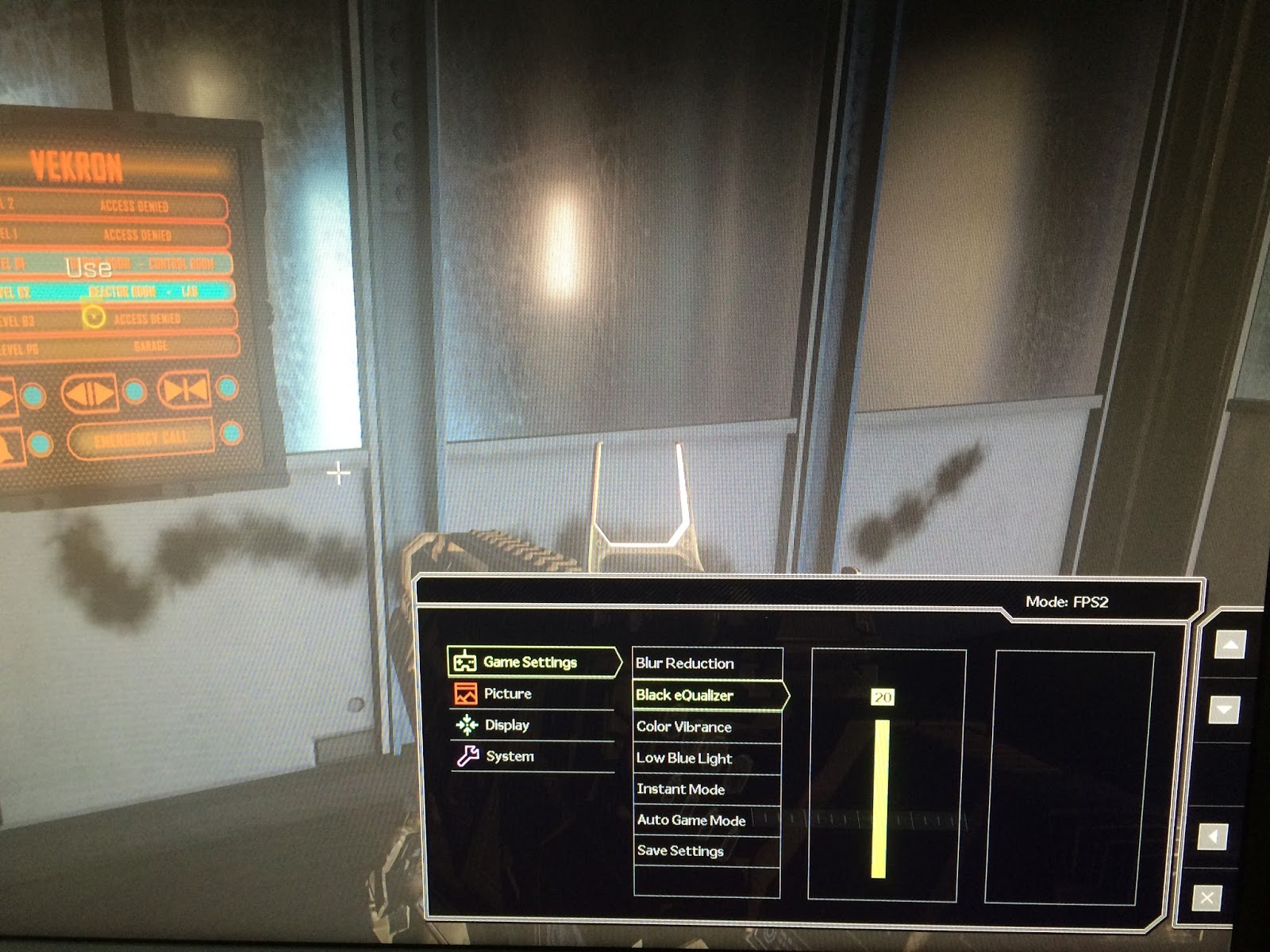
Black eQualizer Test


Black equalizer allows you to see the hidden dark details that isn't visible on most monitors. The screen above is a scene from Call of Duty:Advanced Warfare where the character is currently in a low light environment.


Raising the gauge slowly reveals what's hidden in the low light area. Pretty handy we'd say, especially when you're playing an FPS where enemies blends into the shadows. Take that you filthy dwellers of the dark!  

Color Vibrancy Test


Color vibrancy, something that is pretty personal we'd say. The screen above shows the original color without any adjustments. We might find it comfortable to view, but there's always someone else that finds it to be too tough to their eyes or vice versa.


With the Color Vibrance option, you can adjust the color tone to your preference. A pretty sweet feature to have on a monitor.

Low Blue Light Test 


BenQ's Eye-Care feature that is found on other of its monitor lineup i.e the EW2440L is available on the XL2430T as well.


Raising the gauge of the Low Blue Light feature will reduce the intensity of the blue color on the display to achieve the low blue light state. We've experienced it previously on the EW2440L and it does have effect to reduce fatigue to the eyes on long hours usage.


Software: Display Pilot
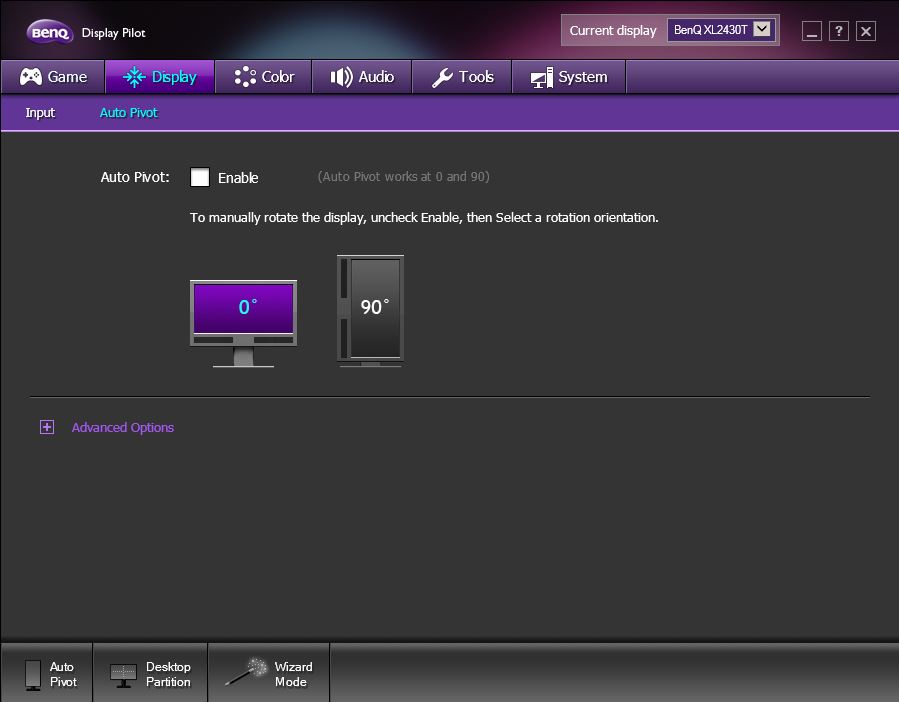
Software for display monitor? Here's the BenQ Display Pilot, specially tailored for BenQ gaming monitors to allow you to easily customize the monitor to behave according to your preferred settings.

Game Tab


Guess what? The 3 features from the monitor servicing menu that we've focused on previously can be accessed from this tab as well. Just in case if you're wondering what the Instant Mode is, it's a feature that is aim to reduce the input lag so user can enjoy the best experience possible.


The 'Auto Game Mode' is a pretty sweet feature that allows you to customize the display mode for each any every game that you'll be playing and automatically switch to the defined Picture Mode when the game is launched. 


The 'Game Mode Loader' allows you to load settings into the preset and can be used for your games later on. There's also a feature that allows you to check for new game modes from BenQ itself to be matched to your preference.


'Game Mode To Go' feature allows you to import and export the game modes and shared with others. In a gaming event or a LAN party, other users of compatible BenQ monitors could just use the same game mode if they like.


Display


The input displays the current ports you're using on the monitor, just in case if you're curious to know, without having to bend over at the back of your desk.


Enabling the Auto Pivot feature allows the monitor to detect its current orientation and adjusts its display accordingly.


Color


The options available here is pretty much the same as the ones on the monitor servicing menu, but things are much more easier as you can adjust the monitor settings directly with your mouse.


Audio


The option itself is pretty much self-explanatory, you can enable audio through HDMI and DisplayPort on your graphics card.


Tools


The 'Desktop Partition' feature allows you to set partition to your desktop from the list of options.


'Extended Taskbar' allows you to extend your taskbar to the consecutive display on a multi-monitor setup instead of just having 1 or 2 extra screens that displays only a blank desktop background. 


System


The information tab displays the information of your current system, including of the operating system, hardwares, etc.


In the options tab, you can configure for auto power off when the monitor is left unattended for a certain period of time for power saving; toggle the AMA (Advanced Motion Accelerator) feature to give greater voltage to the LCD in order to improve the gray to gray response time to allow clearer and more vivid image and toggle the LED Indicator on the power button.


Verdict
From our first view, the BenQ XL2430T did somewhat resemble the ROG Swift but it's less flashy when it comes to the design and not as edgy as the ROG Swift. It has pretty much everything we need, not only for gaming but also for daily usage as well, i.e USB 3.0 ports, lots of display input where we can just connect it to multiple machines, etc.

The picture mode is a commendable feature that makes the display enjoyable on every occasion and it'll be even better with a little tweak. The only thing that we won't recommend here is the Motion Blur Reduction feature as it lowers the brightness of the display tremendously to a very uncomfortable state.

While the price of RM 1,699 appears to be a little pricey, it is actually quite a sweet monitor to own considering the useful features such as software control, very high refresh rates, Black eQualizer, Low Blue Light, Color Vibrance, S Switch Arc, etc. The BenQ XL2430T is worthy to be recommended. 

Pros
  • Sleek and stylish design
  • Quick and easy access to monitor servicing menu with the S Switch Arc
  • Lots of picture mode for various occasions
  • Black eQualizer allows you to reveal hidden details in dark area without having too much impact to the overall quality
  • Rich featured software for various adjustments to the monitor
Cons
  • Costly
  • Motion Blur Reduction feature lowers the brightness tremendously